AI Connections
AI Connections represent connections to specific AI providers with their credentials and capacity configuration. This guide covers everything you need to know about creating and managing AI Connections.
What is an AI Connection?
An AI Connection encapsulates:
- Provider: One of the seven supported providers — OpenAI, Anthropic, Google Gemini, Groq, Perplexity, AWS Bedrock (Converse), AWS Bedrock-Invoke (Anthropic on AWS).
- Credentials: Encrypted API key or AWS IAM role.
- Capacity: Custom capacity limits (e.g., 100 RPM, 100,000 TPM).
- Discovered Capacity: Automatically discovered rate limits from the provider.
See the LLM Providers index for a side-by-side capability matrix and per-provider deep dives.
Creating an AI Connection
- Navigate to AI Connections in the UI
- Click Create Connection
- Fill in the connection details:
- Name: A descriptive name for the connection
- Description: Optional description
- Provider: Select the AI provider
- Configuration: Provider-specific configuration (API keys, region, etc.)
- Capacity: Define capacity limits (optional)
You can also use the quick add feature for faster connection setup:
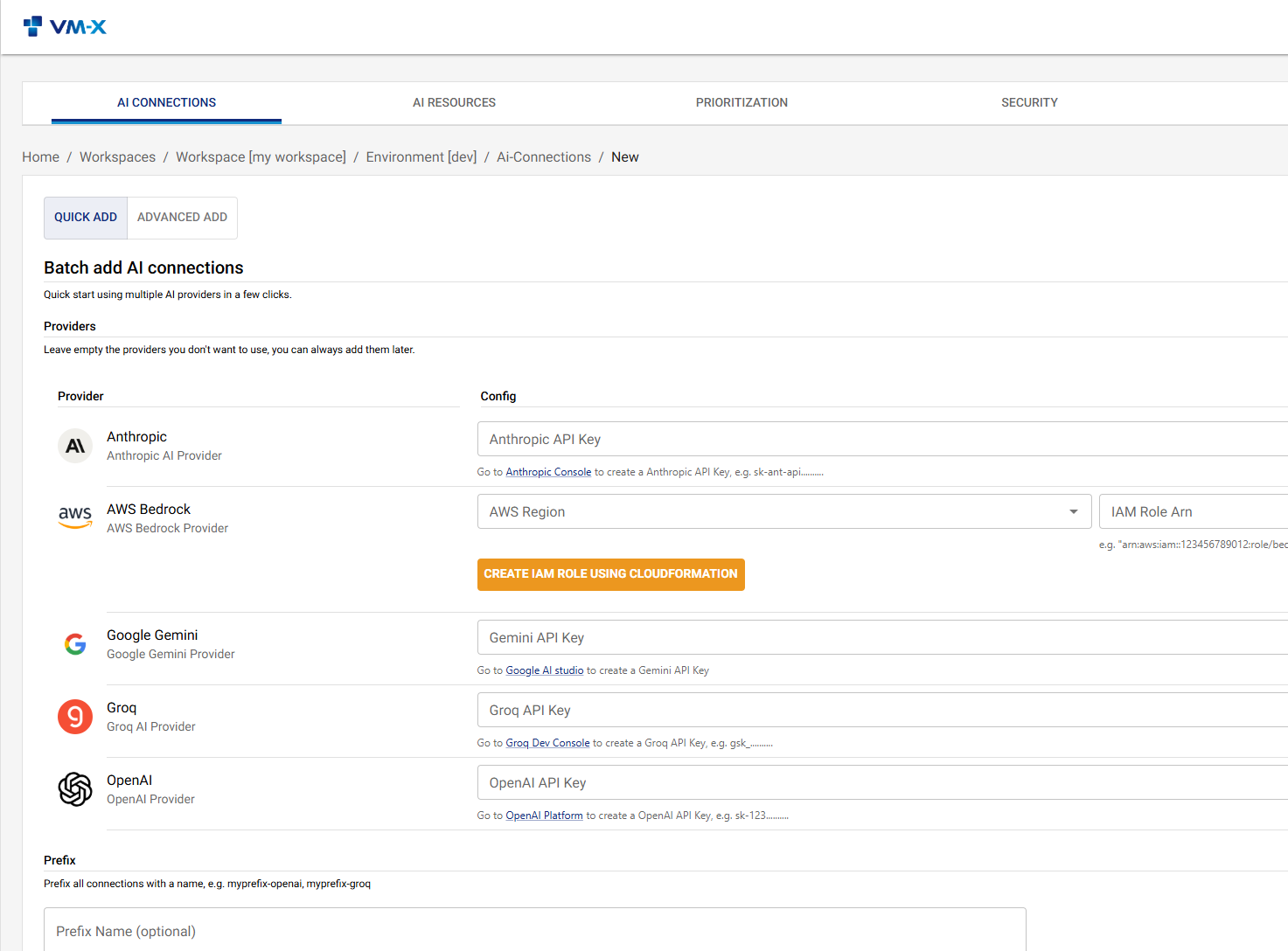
Provider-Specific Configuration
OpenAI
{
  "provider": "openai",
  "config": {
    "apiKey": "sk-..."
  }
}
Anthropic
{
  "provider": "anthropic",
  "config": {
    "apiKey": "sk-ant-..."
  }
}
Google Gemini
The provider id is gemini (not google).
{
  "provider": "gemini",
  "config": {
    "apiKey": "AIza..."
  }
}
Groq
{
  "provider": "groq",
  "config": {
    "apiKey": "gsk_..."
  }
}
Perplexity
{
  "provider": "perplexity",
  "config": {
    "apiKey": "pplx-..."
  }
}
AWS Bedrock (Converse)
The unified Bedrock Converse API — supports every Bedrock foundation model (Claude, Llama, Mistral, Nova, …) at the cost of losing Anthropic-only features in conversion. AWS Bedrock uses IAM role assumption rather than an API key:
{
  "provider": "aws-bedrock",
  "config": {
    "region": "us-east-1",
    "iamRoleArn": "arn:aws:iam::123456789012:role/vm-x-ai-bedrock-role",
    "performanceConfig": {
      "latency": "optimized"
    },
    "guardrailConfig": {
      "guardrailIdentifier": "abc123guardrail",
      "guardrailVersion": "DRAFT",
      "trace": "enabled"
    }
  }
}
Both performanceConfig and guardrailConfig are optional.
performanceConfig.latency is 'standard' | 'optimized' and applies
to every Converse call on the connection. guardrailConfig attaches
a Bedrock Guardrail (by ID or full ARN) to every inference call;
trace defaults to 'enabled' so the audit row sees the guardrail
assessments.
AWS Bedrock-Invoke (Anthropic on AWS)
Same IAM-role auth as aws-bedrock — including the optional
performanceConfig and guardrailConfig blocks shown above — but
the wire shape is the full Anthropic Messages API via Bedrock's
InvokeModel. Use this when running Claude on AWS and you need
Anthropic-only features (cache_control, extended thinking, server
tools) preserved end-to-end. See the
AWS Bedrock-Invoke provider page
for the full feature matrix.
{
  "provider": "aws-bedrock-invoke",
  "config": {
    "region": "us-east-1",
    "iamRoleArn": "arn:aws:iam::123456789012:role/vm-x-ai-bedrock-role"
  }
}
IAM Role Setup (Bedrock providers)
Both Bedrock providers share the same IAM-role setup:
- Create an IAM role in your AWS account with Bedrock permissions.
- Configure the role's trust policy to allow VM-X AI to assume it.
- Use the role ARN in the connection configuration.
A CloudFormation template is available in the repository at packages/api/assets/aws/cfn/bedrock-iam-role.yaml — same template works for both providers.
Capacity Configuration
Capacity limits control how many requests and tokens can be used within a time period.
Capacity Periods
Supported periods (all values lowercase on the wire):
- minute: Requests/tokens per minute
- hour: Requests/tokens per hour
- day: Requests/tokens per day
- week: Requests/tokens per week
- month: Requests/tokens per month
- lifetime: Cumulative cap with no rolling window
Each capacity entry can also carry an optional enabled flag and a
dimension (currently only source-ip) so the limit applies
per-source-IP instead of globally.
Example Configuration
{
  "capacity": [
    {
      "period": "minute",
      "requests": 100,
      "tokens": 100000
    },
    {
      "period": "hour",
      "requests": 5000,
      "tokens": 5000000
    },
    {
      "period": "day",
      "requests": 100000,
      "tokens": 100000000
    }
  ]
}
Capacity Enforcement
Capacity is enforced at the connection level. When a request exceeds capacity:
- The request is rejected with a
429 Too Many Requestsstatus - An error message indicates which limit was exceeded
- The client should retry after the rate limit window resets
Discovered Capacity
VM-X AI automatically discovers rate limits from provider responses:
- X-RateLimit-Limit-Requests: Maximum requests per window
- X-RateLimit-Limit-Tokens: Maximum tokens per window
Discovered capacity is stored in the connection and can be viewed in the UI. This helps you:
- Understand actual provider limits
- Optimize your capacity configuration
- Monitor provider rate limit changes
Credential Security
Encryption
Credentials are encrypted at rest using:
- AWS KMS: For production environments (recommended)
- Libsodium: For local development and small deployments
Credential Storage
- Credentials are stored encrypted in PostgreSQL
- Decryption happens in-memory only
- Credentials are never exposed in:
- API responses
- Logs
- Error messages
Credential Rotation
To rotate credentials:
- Update the connection configuration with new credentials
- The old credentials are immediately replaced
- No downtime required - existing requests continue with old credentials until new ones are used
Best Practices
1. One Connection Per Provider Account
Create separate connections for:
- Different provider accounts
- Different regions (for AWS Bedrock)
- Different environments (development, staging, production)
2. Set Realistic Capacity
Base capacity limits on:
- Provider quotas
- Your usage patterns
- Cost considerations
Monitor discovered capacity to understand actual provider limits.
3. Monitor Usage
Regularly review:
- Capacity utilization
- Discovered capacity changes
- Error rates
5. Secure Credentials
- Use AWS KMS for production
- Rotate credentials regularly
- Never commit credentials to version control
- Use least-privilege access for AWS KMS keys
Updating an AI Connection
- Navigate to the connection
- Click Edit
- Update the desired fields
- Click Save
Viewing Connection Details
Navigate to AI Connections and click on a connection to view:
- Connection details
- Capacity configuration
- Discovered capacity
- Usage statistics
Troubleshooting
Connection Not Working
- Verify Credentials: Ensure API keys are correct and valid
- Check Provider Status: Verify the provider service is operational
- Review Logs: Check API logs for error messages
- Test Connection: Use the provider's API directly to verify credentials
Capacity Limits Too Restrictive
- Review Capacity Configuration: Check if limits are too low
- Monitor Usage: Review actual usage patterns
- Adjust Limits: Increase capacity limits as needed
- Consider Prioritization: Use prioritization to allocate capacity fairly
Discovered Capacity Not Updating
- Make Requests: Discovered capacity is updated when requests are made
- Check Provider Headers: Verify provider returns rate limit headers
- Review Logs: Check for errors in capacity discovery